Introduction
This guide is for anyone wondering:

Is there a way to search the web without saving browsing history on a school-issued computer or tablet?
If that sounds familiar, this article explains what privacy tools can and cannot do.
Below are four ways to reduce locally saved browsing history, with instructions for popular browsers. Important: none of these methods guarantees that activity is hidden from school administrators, networks, or websites.
Method 1: Use Incognito or Private Browsing Mode
Most browsers, including Chrome, Firefox, Edge, and Safari, offer a private browsing mode. After you close all private windows, the browser generally does not retain that session’s local browsing history or cookies. However, downloaded files, bookmarks, account activity, and network or device-management logs may remain. Open a new private or incognito window from the browser menu.
How to Open a Private Browsing Window
Google Chrome:
- Open Google Chrome.
- Click the three-dot menu in the upper-right corner.
- Select “New Incognito window.” Alternatively, press Ctrl + Shift + N on Windows or Command + Shift + N on Mac.
- A private window opens. Your local browsing history is not normally retained after the private session ends, but your school or network may still record activity.
Mozilla Firefox:
- Open Mozilla Firefox.
- Click the three-line menu in the upper-right corner.
- Select “New Private Window,” or press Ctrl + Shift + P on Windows or Command + Shift + P on Mac.
- A private window opens. Your local browsing history is not normally retained after the private session ends, but your school or network may still record activity.
Microsoft Edge:
- Open Microsoft Edge.
- Click the three-dot menu in the upper-right corner.
- Select “New InPrivate window,” or press Ctrl + Shift + N on Windows.
- A private window opens. Your local browsing history is not normally retained after the private session ends, but your school or network may still record activity.
Safari:
- Open Safari.
- Click “File” in the menu bar.
- Select “New Private Window,” or press Command + Shift + N on Mac.
- A private window opens. Your local browsing history is not normally retained after the private session ends, but your school or network may still record activity.
Method 2: Use a Privacy-Focused Search Engine
Privacy-focused search engines such as DuckDuckGo and Startpage aim to reduce search tracking and profiling. They do not automatically erase your browser history or hide searches from a school-managed device or network. For less locally saved history, combine them with a private browsing window.
How to Use Privacy-Focused Search Engines
These search engines work much like a regular search website. Here are two examples.
DuckDuckGo:

- Visit DuckDuckGo: https://duckduckgo.com/.
- Enter your keywords in the search box.
- Review the results. DuckDuckGo says it does not create personal search histories, but your browser, device, and network may still retain information.
Startpage:
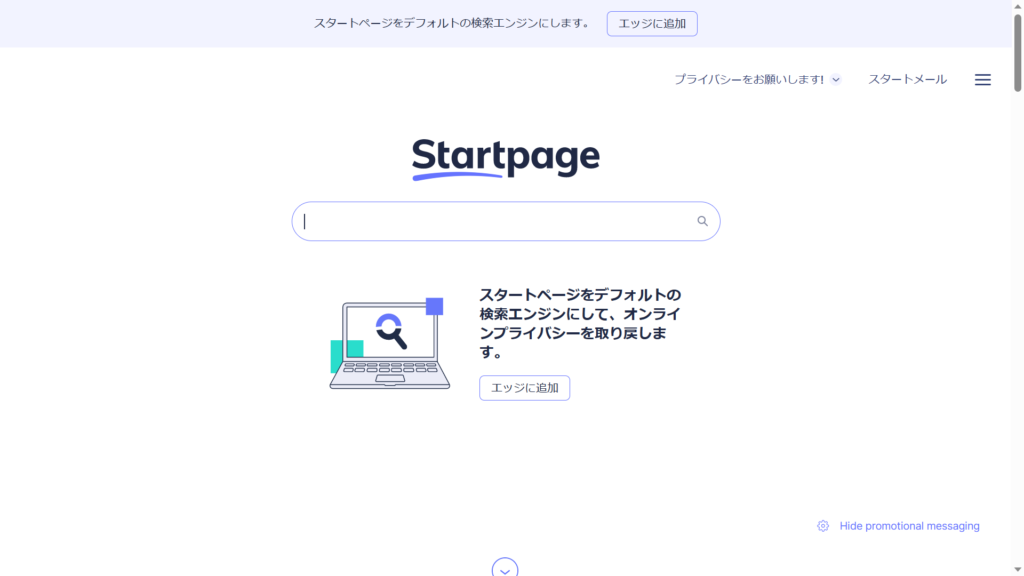
- Visit Startpage: https://www.startpage.com/.
- Enter your keywords in the search box.
- Review the results. Startpage focuses on private search and offers an optional Anonymous View feature for some results; regular searches do not make your device or network activity invisible.
Method 3: Use Tor Browser

- Tor Browser is designed to improve privacy and reduce tracking while browsing.
- Unlike a standard browser, it routes traffic through the Tor network. It is not a guarantee of complete anonymity.
How to Use Tor Browser
- Download and install Tor Browser from https://www.torproject.org/.
- Launch Tor Browser after installation.
- Its interface looks similar to other browsers, but its network routing is designed to protect privacy.
- Type a website address into the address bar to browse. Installation or access may be restricted on managed school devices.
How Tor Browser Protects Privacy:
- Tor routes traffic through multiple relays, helping conceal your original IP address from the destination website.
- This makes some forms of tracking harder, but administrators may still detect Tor use, and logging into personal accounts can identify you.
Method 4: Use an Online Web Proxy
- A web proxy acts as an intermediary between your browser and the destination website.
- A typical web proxy asks you to enter the destination URL into its input field.
- A proxy may hide your original IP address from the destination site, but it does not automatically remove browser history or prevent school monitoring. The proxy operator may also see your activity.
How to Use an Online Web Proxy
- Open a reputable web proxy website in your browser.
- Follow its instructions and enter the website address you want to visit.
- The proxy forwards your request and may mask your IP from the destination. Avoid entering passwords or sensitive information into untrusted proxy services.
For related guides to proxy websites and browser access, see these articles:

Conclusion
These are four common approaches to browsing with more privacy on a Chromebook or PC.
Private browsing can reduce the history saved on your device, while privacy search engines, Tor, and proxies address different aspects of tracking. None guarantees complete anonymity.
On school-issued computers, administrators may be able to monitor internet activity through device-management tools or network systems.
Depending on the school’s configuration, administrators may have access to website visits, search-related activity, and other connection metadata even when a private window is used.
For example, even if a tool limits what is stored locally, a school may still be able to tell that a proxy or privacy-focused service was accessed.
For personal searches that require greater privacy, a personal device and network may be more appropriate than a managed school computer. Keep in mind that privacy depends on the services, accounts, and networks involved.


コメント